KeyStores
KeyStore Explorer can be used to create, edit and save KeyStore files. A KeyStore is a storage mechanism for cryptographic tokens. Such tokens are known as entries. KeyStore entries can be one of the following types:
- Trusted Certificate Contains a single public key certificate.
- Key Pair Holds a private key and its associated chain of one or more certificates.
- Key Contains a single cryptographic key.
KeyStores are password protected. The password is required to load the KeyStore and a password will be requested when saving a KeyStore for the first time.
Key Pair entries are also password protected. A password is required to access the private key part of a Key Pair entry.
There are various different types of KeyStore supported by KeyStore Explorer:
- JKS Java KeyStore. Oracle's KeyStore format.
- JCEKS Java Cryptography Extension KeyStore. More secure version of JKS.
- PKCS #12 Public-Key Cryptography Standards #12 KeyStore. RSA's KeyStore format.
- BKS Bouncy Castle KeyStore. Bouncy Castle's version of JKS.
- UBER Bouncy Castle UBER KeyStore. More secure version of BKS.
- BCFKS Bouncy Castle FIPS KeyStore.
- PEM KeyStore using PEM format. Can hold several certificates and private keys concatenated in one PEM file.
- KDB (CMS) IBM's CMS Key Database format (GSKit format used by enterprise web and application servers).
All of the KeyStores operate identically when managed with KeyStore Explorer with the exception of PKCS #12 KeyStores. Unlike other KeyStore types, PKCS #12 KeyStores do not store the last modified date and time of entries. When viewing a PKCS #12 KeyStore the Last Modified column will always be blank.
Create a New KeyStore
To create a new KeyStore:
-
From the File menu, choose New. Alternatively click on the New tool bar button:

- The New KeyStore Type dialog is displayed. Select the desired KeyStore Type using the radio buttons:
- JKS Java KeyStore.
- JCEKS Java Cryptography Extension KeyStore.
- PKCS #12 Public-Key Cryptography Standards #12 KeyStore.
- BKS Bouncy Castle KeyStore.
- UBER Bouncy Castle UBER KeyStore.
- BCFKS Bouncy Castle FIPS KeyStore.
- PEM KeyStore using PEM format.
- KDB (CMS) CMS Key Database (GSKit format used by enterprise web and application servers).
- Press the OK button.
- The new KeyStore will appear as an additional Untitled tab.
Open an Existing KeyStore
To open an existing KeyStore:
-
From the File menu, choose Open. Alternatively click on the Open tool bar button:

- The Open KeyStore dialog will appear.
- Select the drive and folder where the KeyStore file is stored.
- Click on the required KeyStore file or type the filename into the File Name text box.
- Click on the Open button.
- The Unlock KeyStore dialog will appear.
- Type in the KeyStore's password and press the OK button.
- The opened KeyStore will appear as an additional tab.
Note: KeyStore Explorer supports eight file-based KeyStore types: JKS, JCEKS, PKCS #12, BKS, UBER, BCFKS, PEM and KDB. Attempting to open KeyStore files of any other type will result in an error.
Open the Default KeyStore
To open the default KeyStore:
- From the File menu, choose Open Special and from the sub-menu Open Default.
- If the default KeyStore exists the Unlock KeyStore dialog will appear.
- Type in the KeyStore's password and press the OK button.
- The default KeyStore will appear as an additional tab.
- Alternatively if the default KeyStore does not exist:
- A dialog will appear asking if you want to create it.
- Answering Yes causes the New KeyStore Type dialog to be displayed. Select the desired KeyStore Type using the radio buttons.
- Press the OK button.
- The Set KeyStore Password dialog is displayed.
- Enter the password with which to protect the KeyStore, confirm it and press the OK button.
- The new default KeyStore will appear as an additional tab.
Note: KeyStore Explorer supports eight file-based KeyStore types: JKS, JCEKS, PKCS #12, BKS, UBER, BCFKS, PEM and KDB. Attempting to open KeyStore files of any other type will result in an error.
Open the CA Certificates KeyStore
To open the CA Certificates KeyStore:
- From the File menu, choose Open Special and from the sub-menu Open CA Certificates.
- If the CA Certificates KeyStore exists the Unlock KeyStore dialog will appear.
- Type in the KeyStore's password and press the OK button.
- The CA Certificates KeyStore will appear as an additional tab.
- Alternatively if the CA Certificates KeyStore does not exist:
- A dialog will appear asking if you want to create it.
- Answering Yes causes the New KeyStore Type dialog to be displayed. Select the desired KeyStore Type using the radio buttons.
- Press the OK button.
- The Set KeyStore Password dialog is displayed.
- Enter the password with which to protect the KeyStore, confirm it and press the OK button.
- The new CA Certificates KeyStore will appear as an additional tab.
Note: KeyStore Explorer supports eight file-based KeyStore types: JKS, JCEKS, PKCS #12, BKS, UBER, BCFKS, PEM and KDB. Attempting to open KeyStore files of any other type will result in an error.
Open a PKCS#11 KeyStore
PKCS#11 is a standard that defines an API for accessing cryptographic devices. In Java the SunPKCS11 provider wraps the PKCS#11 API and transforms it into the keystore API.
To open a PKCS#11 KeyStore:
- From the File menu, choose Open Special and from the sub-menu Open PKCS#11.
- The Open PKCS#11 dialog will appear. There are two ways to use a PKCS#11 library in KSE:
- If the SunPKCS11 provider has already been added to the Java Security properties file (this is described in detail in the Java PKCS#11 Reference Guide and also often in the documentation of the cryptographic device), then you can then simply select it in this dialog.
- Alternatively, KSE can register the SunPKCS11 provider itself, if you provide the path to the PKCS#11 library and the right slot index.
- Type in the KeyStore's password and press the OK button.
- The PKCS#11 KeyStore will appear as an additional tab.
Press the OK button when you have selected one of the two methods.
Note that because PKCS#11 libraries are native code you have to make sure that both the JRE and the PKCS#11 library are either 32 or 64 bit.
Open the Windows User KeyStore
Since Java 6 the SunMSCAPI provider is part of the JRE, enabling software written in Java to access the native cryptographic services and key containers of the Windows platform.
In KeyStore Explorer you can open the "Windows-MY" KeyStore, which contains the user's personal certificates and associated private keys.
To open the Windows-MY KeyStore:
- From the File menu, choose Open Special and from the sub-menu Open Windows-MY.
- The Windows-MY KeyStore will appear as an additional tab.
Note that due to restrictions of the SunMSCAPI provider not all features are available, that would be available for other keystore types.
Open the Windows Root KeyStore
In addition to the "Windows-MY" personal KeyStore, KeyStore Explorer can open the "Windows-ROOT" KeyStore, which contains the current user's trusted root certificates.
To open the Windows-ROOT KeyStore:
- From the File menu, choose Open Special and from the sub-menu Open Windows-ROOT.
- The Windows-ROOT KeyStore will appear as an additional tab.
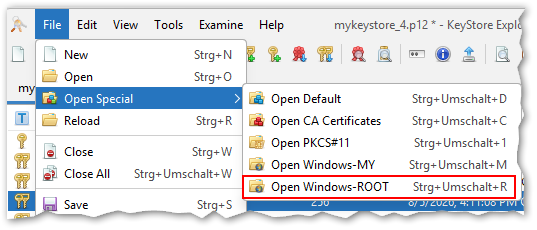
Note that this is the trust store for the current user, not for the local machine. As with the Windows-MY KeyStore, not all features are available due to restrictions of the SunMSCAPI provider.
Open the Apple Keychain KeyStore
On macOS, KeyStore Explorer can open the Apple Keychain, a system KeyStore that holds various types of credentials, including certificates and private keys.
To open the Apple Keychain:
- From the File menu, choose Open Special and from the sub-menu Open Apple Keychain.
- The Apple Keychain will appear as an additional tab.
Unlike the Windows KeyStores, the Apple Keychain is not read-only in KeyStore Explorer: certificates and key pairs can also be created in and imported into it, in addition to being viewed and exported.
Reload a KeyStore
If a KeyStore file is modified by another application while it is open in KeyStore Explorer, it can be reloaded from disk without having to close and reopen it.
To reload the active KeyStore:
- Select the required KeyStore by clicking on its tab.
- From the File menu, choose Reload.
- The KeyStore will be reloaded from disk.
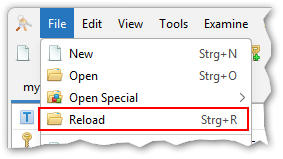
KeyStore Explorer can also watch open KeyStore files and offer to reload them automatically whenever they change on disk. This is configured in the Preferences dialog, see KeyStore Open and Reload Configuration. If automatic reloading is enabled, KSE will still warn before reloading a KeyStore that has unsaved changes, since reloading discards them.
Close a KeyStore
To close a KeyStore:
- Select the required KeyStore by clicking on its tab.
- From the File menu, choose Close.
- If the KeyStore does not have unsaved changes then it will be closed immediately.
- If the KeyStore contains unsaved changes:
- A dialog will appear asking if you want to save it.
- Answering No closes the KeyStore losing the unsaved changes.
- Alternatively answering Yes saves the KeyStore prior to closing:
- If you have yet to set a password for the Untitled KeyStore then the Set KeyStore Password dialog is displayed.
- Enter the password with which to protect the KeyStore, confirm it and press the OK button.
- The Save KeyStore As dialog is displayed.
- Select the drive and folder where the KeyStore file is to be saved.
- Type the filename into the File Name text box.
- Click on the Save button.
Close All KeyStores
To close all KeyStores:
- From the File menu, choose Close All.
- Each open KeyStore will be closed in turn:
- If the KeyStore does not have unsaved changes then it will be closed immediately.
- If the KeyStore contains unsaved changes:
- A dialog will appear asking if you want to save it.
- Answering No closes the KeyStore losing the unsaved changes.
- Alternatively answering Yes saves the KeyStore prior to closing:
- If you have yet to set a password for the Untitled KeyStore then the Set KeyStore Password dialog is displayed.
- Enter the password with which to protect the KeyStore, confirm it and press the OK button.
- The Save KeyStore As dialog is displayed.
- Select the drive and folder where the KeyStore file is to be saved.
- Type the filename into the File Name text box.
- Click on the Save button.
Save a KeyStore
To save a KeyStore:
- Select the required KeyStore by clicking on its tab.
-
From the File menu, choose Save. Alternatively click on the Save tool bar button:

- If you have yet to set a password for the KeyStore then the Set KeyStore Password dialog is displayed.
- Enter the password with which to protect the KeyStore, confirm it and press the OK button.
- If the KeyStore is not Untitled then it will be saved at this point.
- Otherwise the Save KeyStore As dialog is displayed.
- Select the drive and folder where the KeyStore file is to be saved.
- Type the filename into the File Name text box.
- Click on the Save button.
Save a KeyStore with a New Name
To save a KeyStore with a new name:
- Select the required KeyStore by clicking on its tab.
- From the File menu, choose Save As.
- If you have yet to set a password for the KeyStore then the Set KeyStore Password dialog is displayed.
- Enter the password with which to protect the KeyStore, confirm it and press the OK button.
- The Save KeyStore As dialog is displayed.
- Select the drive and folder where the KeyStore file is to be saved.
- Type the filename into the File Name text box.
- Click on the Save button.
Save All KeyStores
To save all KeyStores:
- From the File menu, choose Save All.
- Each KeyStore with unsaved changes will be saved in turn:
- If you have yet to set a password for the KeyStore then the Set KeyStore Password dialog is displayed.
- Enter the password with which to protect the KeyStore, confirm it and press the OK button.
- If the KeyStore is not Untitled then it will be saved at this point.
- Otherwise the Save KeyStore As dialog is displayed.
- Select the drive and folder where the KeyStore file is to be saved.
- Type the filename into the File Name text box.
- Click on the Save button.
Change a KeyStore's Type
To change a KeyStore's type:
- Select the required KeyStore by clicking on its tab.
- From the Tools menu, choose the Change Type sub-menu.
- From this sub-menu you can choose between the following KeyStore types:
- JKS Java KeyStore.
- JCEKS Java Cryptography Extension KeyStore.
- PKCS #12 Public-Key Cryptography Standards #12 KeyStore.
- BKS Bouncy Castle KeyStore.
- UBER Bouncy Castle UBER KeyStore.
- BCFKS Bouncy Castle FIPS KeyStore.
- PEM KeyStore using PEM format.
- KDB (CMS) CMS Key Database.
- Choose the menu item corresponding to the required type. Note that the current type will be pre-selected.
- The KeyStore type will now be changed.
- If the KeyStore contains Key Pair entries that have not been unlocked then the Unlock Entry dialog will be displayed for each.
- KeyStore entries of type Key will be lost in the change.
Set a KeyStore's Password
To set a KeyStore's password:
- Select the required KeyStore by clicking on its tab.
-
From the Tools menu, choose Set Password. Alternatively click
on the Set Password tool bar button:

- The Set KeyStore Password dialog will be displayed.
- Enter the new password with which to protect the KeyStore, confirm it and press the OK button.
View a KeyStore's Properties
To view a KeyStore's properties:
- Select the required KeyStore by clicking on its tab.
-
From the Tools menu, choose Properties. Alternatively click on
the Properties tool bar button:

- The KeyStore Properties dialog will be displayed.
- Optionally copy the properties to the clipboard by pressing the Copy button.
- After viewing the properties close the dialog by pressing the OK button.
Export KeyStore Entries as CSV
To export the KeyStore Entries table as a CSV (comma-separated values) file:
- Select the required KeyStore by clicking on its tab.
- From the Tools menu, choose Export as CSV.
- Select the drive and folder where the CSV file is to be saved.
- Type the filename into the File Name text box.
- Click on the Save button.
The exported file includes exactly the columns currently visible in the KeyStore Entries table — to add or remove columns before exporting, see Columns Configuration. The field separator character (comma or semicolon) is chosen automatically based on the system locale.